Audiolift Controller Software User Guide
This guide explains how to use Audiolift Controller, the Windows desktop application that controls the Audiolift processor. It focuses on visible screens, user actions, session handling, routing, upmix controls, calibration, monitoring, settings, and recovery workflows.
Introduction
The Audiolift AIP (Audiolift Immersive Processor) is an immersive sound processor used to drive a multichannel sound-reinforcement system and to create spatialization effects, including from stereo mixes (upmix).
The processor is controlled with the Audiolift Controller software. Its main window groups processor management, venue design, input routing, output routing, upmix processing, calibration, snapshots, metering, and settings.
The central concept is the session. A session stores the user configuration used by the interface. You can work from a session stored in the application, apply a session to a processor, or retrieve the current session from a processor.
Common Interaction Rules
| Interaction | Typical use |
|---|---|
| Simple click | Select an item, activate a button, toggle a route, open a page, or focus a control. |
| Double-click | Edit a name, text, segment, or field when inline editing is available. |
| Click and drag | Move points, speakers, text boxes, canvas objects, faders, sliders, or viewport content. |
| Right-click | Open contextual controls when available, for example precise matrix gain editing. |
| Long press | Touch equivalent for contextual actions such as matrix gain editing. |
| Ctrl/Cmd + click | Use extended actions where available, such as diagonal routing from a selected matrix cell. |
| Shift + click | Use alternate edit gestures where available, such as deleting drawing points or segments. |
| Mouse wheel | Zoom canvas views or adjust controls that support wheel interaction. |
| Arrow keys | Adjust focused numeric controls, faders, sliders, dropdowns, or selected lists when supported. |
| Escape | Cancel popups, editing, panning, learn mode, or temporary interaction modes. |
Key Concepts
New to Audiolift? Start here. These are the few ideas you need before touching a control. Each one is explained again, in context, in its own chapter.
What Audiolift does
Audiolift takes your incoming audio (for example a stereo mix) and spatialises it across many loudspeakers placed around the audience — this is the upmix. You describe where the speakers are (Design), decide which inputs feed the engine (Inputs), shape the spatial result (Upmix), send it to the speakers (Outputs), fine-tune each speaker (Speaker Calibration), and store/recall states (Snapshots).
The audio signal path
All processing follows a single path, from Dante input to Dante output. Each controller page acts on one stage of this path. In each chapter, this diagram is repeated with the relevant stage highlighted.
- Three input matrices distribute the Dante inputs: Upmix Send (to the upmix engine), Speakers Send (directly to speakers) and Direct Out (directly to the outputs, unprocessed).
- The upmix engine runs the signal through the upmix EQ, then splits it into Upmix, LF (low frequency) and LFE buses, each with its own gain and spatial balance.
- The Speakers bus is summed with the Upmix and LF buses before the per-speaker delays and gains (Speaker Calibration). The LFE bus is injected onto every speaker marked as a sub (same bus as Speakers Send). If the venue has no sub, the LFE stays a dedicated row in the output matrix.
- The output matrix (OUTPUTS) sends each speaker to the Dante outputs. Direct Out joins it on the Output bus.
- Three pink-noise generators (stereo, panned, per speaker) are used for calibration.
Controller vs. processor
The processor is the rack unit that does the audio. The controller, Audiolift Controller, is the desktop application described in this guide (Windows only). It connects to the processor over the CONTROL network. One controller can see several processors.
Session vs. snapshot
| Term | What it is | When to use it |
|---|---|---|
| Session | The complete configuration of a processor (design, routing, upmix, calibration, settings). | Prepare offline, apply to a processor, or read back from one. |
| Snapshot | A saved state inside the current session that you can recall instantly. | Switch between known looks/scenes during setup or a show. |
Two separate networks: CONTROL and Dante
Audio and control travel on different network ports. The CONTROL port carries the interface, discovery, and updates. The Dante ports (Primary and Secondary) carry the digital audio. Keeping them clear in your head avoids most setup confusion — see System & Connections.
Quick Start
- Open Audiolift Controller.
- Go to PROCESSORS.
- Select a processor or select an offline session.
- Use Apply Session to send a selected session to a selected processor, or use Get Session to save the current processor configuration as a session.
- Open DESIGN to check the venue layout.
- Use INPUTS, OUTPUTS, UPMIX, and CALIBRATION to configure the audio workflow.
- Create or recall configurations from SNAPSHOTS.
- Use METERS to monitor signal levels.
First Setup Walkthrough
A guided path from an unpacked unit to sound in the room. Follow it once and the rest of the interface will make sense. Each step links to its full chapter.
- Install the processor in a rack. See Rack mounting.
- Connect it to the mains with the supplied cord, on an earthed outlet. See Electrical safety.
- Connect the CONTROL and Dante ports on the rear panel, using shielded straight
CAT5e U/FTP cables (100 m maximum):
- CONTROL to the control-network switch, which the Windows PC running Audiolift Controller is also connected to;
- Dante Primary to the Dante audio-network switch;
- Dante Secondary (optional) to a second, independent Dante switch, for redundancy.
The Audiolift Controller PC reaches the processor over CONTROL (black). Dante Primary (blue) carries the audio network; Dante Secondary (red) is an independent redundant path to the same devices. (Illustrative — your devices will vary.) - Open the Audiolift Controller application on the PC:
 is its icon in the Start menu and on the desktop.
 - Select your processor. On PROCESSORS, pick the
unit and click Control processor
(
 three-faders icon).
 - Load or create a session. Apply a prepared session, or use Get Session to read the processor's current state.
- Describe the room. In DESIGN, set the scale, draw the listening area, and place your loudspeakers (full range and, if needed, subs).
- Route inputs. In INPUTS, open UPMIX SEND, DIRECT OUT, and SPEAKERS SEND, then route inputs using the matrices.
- Route outputs. In OUTPUTS, send the upmix channels to your loudspeaker outputs.
- Check each speaker. In CALIBRATION (Speaker Calibration), use per-speaker pink noise to confirm the right speaker plays, then set gain, delay, and polarity.
- Shape the space. In UPMIX, adjust spread, LFE, and panorama while watching the meters.
- Save a snapshot once it sounds right (SNAPSHOTS), and monitor levels in METERS.
Main Window
The main window is organized around a title bar, a left navigation menu, and a central workspace.
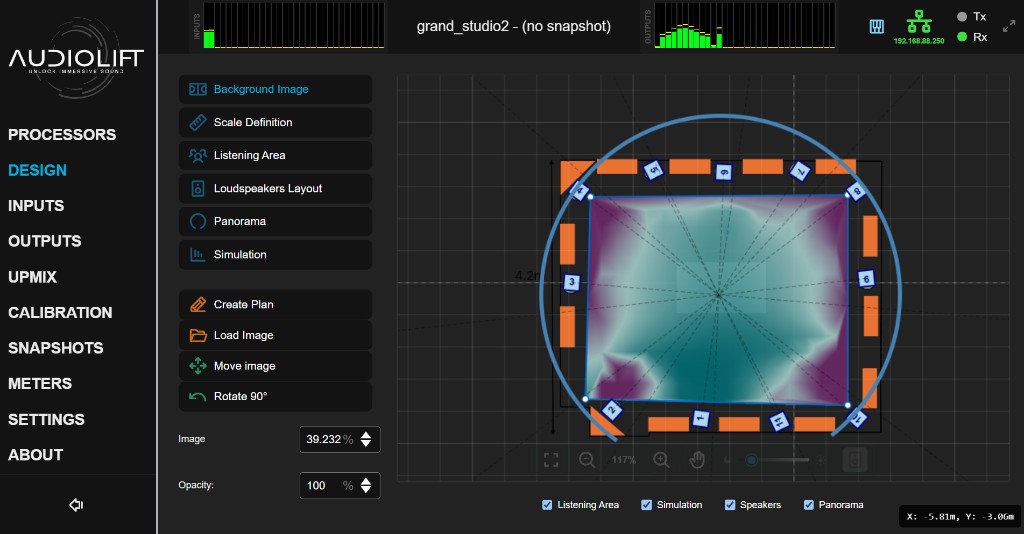
Title bar
The title bar shows the current session and snapshot names. When no processor is connected, the title area may show OFFLINE. It also groups meter strips and status indicators.
| Control | Result |
|---|---|
| Input / output meter strips | Shows signal presence and may provide quick access to related routing pages. |
 MIDI indicator MIDI indicator |
Shows MIDI activity (connected device / incoming messages). Clicking opens the MIDI page. |
| Network / IP indicator | Shows CONTROL connection status and the processor IP address when available. |
| Tx / Rx indicators | Shows recent outgoing and incoming activity. |
 Fullscreen Fullscreen |
Enters or exits fullscreen when the environment allows it. |
Left menu
The left menu contains the main sections:
- PROCESSORS: select processors and manage sessions.
- DESIGN: configure the venue layout and visual scene.
- INPUTS: open UPMIX SEND, DIRECT OUT, and SPEAKERS SEND to route inputs with the matrices.
- OUTPUTS: route speakers to Dante outputs.
- UPMIX: adjust upmix, LFE, spread, delays, crossovers and panorama balance.
- CALIBRATION: calibrate speakers, use test signals and the upmix equalizer.
- SNAPSHOTS: create, recall, export, import and organize snapshots.
- METERS: monitor input and output levels.
- SETTINGS: configure network, cloud, audio, MIDI and license.
- ABOUT: product information and support/report actions.
| Control | Result |
|---|---|
| Menu entry | Opens the selected page in the main content area. |
| INPUTS, CALIBRATION, SETTINGS child entries | Opens the child page or scrolls to the related section. |
  Collapse menu / Expand menu Collapse menu / Expand menu |
Collapses or restores the left navigation width. |
Processors & Sessions
The PROCESSORS page is the starting point for most workflows. It lets you select a processor, select a session, apply a session to a processor, or retrieve a session from a processor.
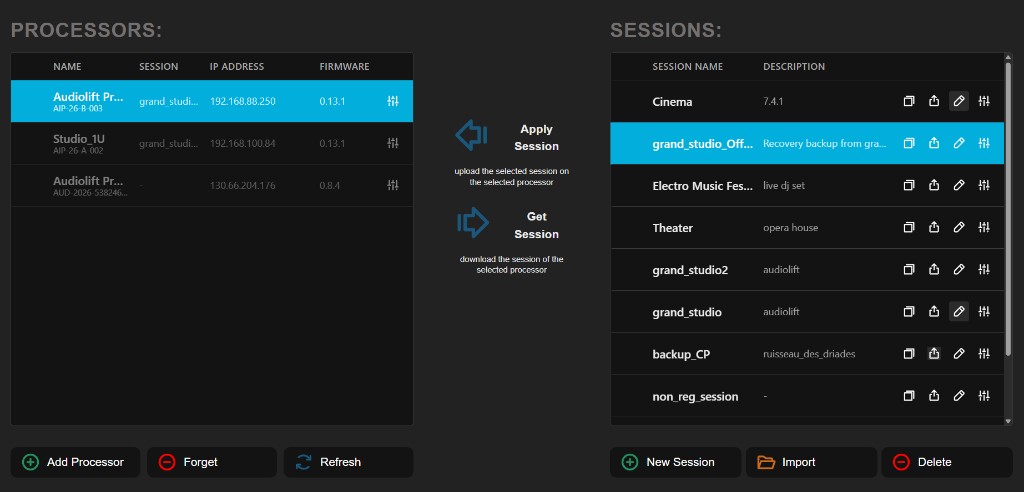
Processor List
The processor list displays the discovered processors. Each row shows the Name
(with the serial number below it), the associated Session, the
IP Address, and the Firmware version. The available action is
Control processor
( three-faders icon, on the right of each row).
Session List
The session list contains stored sessions. A session can be opened for offline work, copied, exported, renamed, edited, or deleted depending on the available actions.
Controls and Interactions
| Control | Result |
|---|---|
| Processor row | Selects the processor used by processor actions. |
| Control processor |
Starts working with the selected processor and opens the working pages. |
 Add Processor Add Processor |
Adds a processor manually to the list. Click, then type processor address or cloud URL |
| Session row | Selects the session used by session actions. |
| Edit session |
Loads the session for offline editing. |
 Copy / Duplicate session Copy / Duplicate session |
Creates a copy of the selected session. |
 Export session Export session |
Saves the selected session to a file. |
 Edit metadata Edit metadata |
Changes the session name or description. |
 Delete Delete |
Deletes the selected session after confirmation. |
| New Session |
Creates a new offline session. |
 Import Import |
Imports a session file into the session list. |
Apply Session
- Select a processor from the processor list.
- Select a session from the session list.
- Click Apply Session.
- If the processor is protected, enter the required password.
- Wait for the confirmation message.
Get Session
- Select the processor you want to read from.
- Click Get Session.
- Enter a session name and description when prompted.
- Create the session to store the processor configuration in the application.
Common Messages
- Please select a processor from the list: select a processor before applying or retrieving a session.
- Please select a session to apply: select a stored session before using Apply Session.
- Failed to load session: the selected session could not be opened. Try another session or import a valid file.
Force Control (Taking Over a Locked Processor)
A processor can be in active control by another controller. When you try to take control of a processor that is already in use, Audiolift offers Take Control / Force Control so you can take over.
- Take Control: requests control of the processor.
- Force Control: forces the takeover immediately. The previously connected controller (embedded or remote) is notified that it has been disconnected.
Design
The DESIGN page is used to prepare the listening environment and loudspeaker layout. It combines a visual canvas with panels for background image, scale definition, listening area, loudspeaker layout, panorama, and simulation.
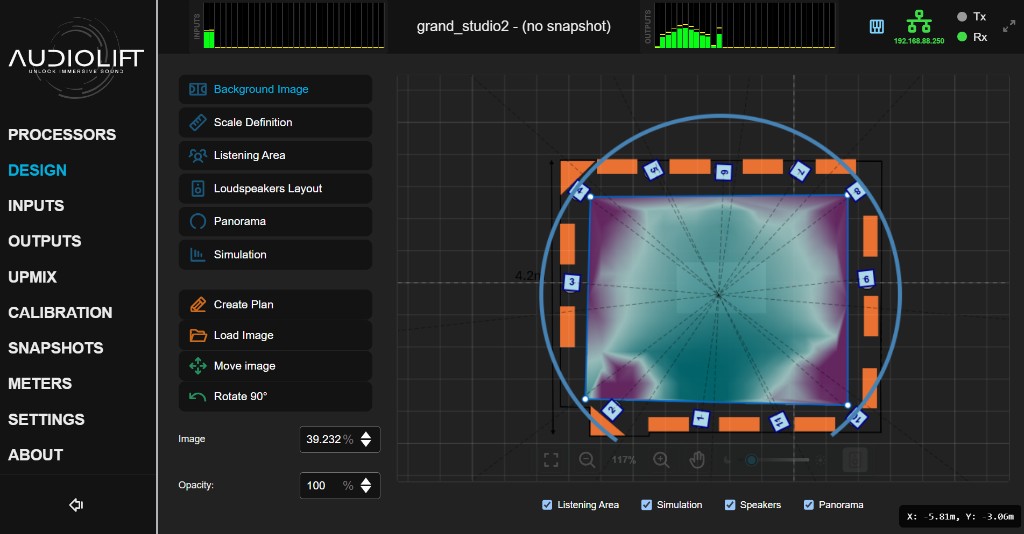
Main Areas
- Background Image: load and position a plan or reference image.
- Scale Definition: define the relationship between pixels and real-world distance.
- Listening Area: define the listening zone used for visual planning.
- Loudspeakers: place full-range speakers and subwoofers.
- Panorama: control the panorama representation used by the venue design.
- Simulation: live spatialisation, coverage and sub maps on the listening area.
Canvas Viewport Controls
| Control | Result |
|---|---|
 Fit content Fit content |
Frames the full design content in the canvas. |
  Zoom out / Zoom in Zoom out / Zoom in |
Changes the canvas zoom level without changing the floorplan image scale. |
| Mouse wheel | Zooms the canvas around the pointer position. |
| Ctrl + wheel | Performs finer zoom adjustment where supported. |
 Pan tool Pan tool |
Moves the view sideways. Click the hand tool, then left-drag |
| Temporary pan | Moves the view sideways without leaving the current design tool (drawing, scale…). Release to resume the tool where you left off. Hold Space and left-drag, or drag with the middle mouse button |
| Escape | Cancels temporary panning or closes the speakers side panel. |
 Speakers panel button Speakers panel button |
Shows or hides the loudspeaker side panel. |
Background Image Section
| Control | Result |
|---|---|
 Plan Sketch Plan Sketch |
Opens the Plan Sketch editor to create or edit a plan. |
| Load Image |
Loads a floorplan or reference image into the design canvas. |
 Move Image Move Image |
Repositions the floorplan image without moving speakers or design objects. Click to enable, then drag the image on the canvas |
 Rotate Image Rotate Image |
Rotates the floorplan image only. |
| Image size | Scales the floorplan image independently from the canvas zoom. |
Scale Definition Section
| Control | Result |
|---|---|
| Scale distance field | Defines the real-world distance used for scale calibration. |
| Scale line on canvas | Sets the measured reference used by the scale distance field. Click and drag between two known points |
 Confirm scale Confirm scale |
Applies the selected reference distance to the venue design. |
Listening Area Section
| Control | Result |
|---|---|
| Draw / Edit listening area |
Creates or edits the audience/listening polygon. Click to enable, then click points on the canvas |
| Listening area points | Moves or removes polygon points while editing. Drag points; Shift + click where supported |
 Clear listening area Clear listening area |
Removes the current listening area. |
Loudspeakers
Each loudspeaker occupies one processor speaker bus and counts toward the license. Choose full range or sub. Full-range speakers sit first; subs are always grouped at the end. Subs are drawn as orange rectangles, stay omnidirectional (aim and aperture are greyed), and receive the LFE instead of the upmix. A Speakers Send route to a sub is added to that LFE.
| Control | Result |
|---|---|
| Add Speaker |
Adds a full-range loudspeaker. Click, then position on the canvas if required |
| Add Sub |
Adds a subwoofer at the end of the list (orange rectangle, omni). |
| Type (FR / SUB) | Changes the speaker type. Switching to sub moves it to the end; switching to full range places it at the end of the full-range group. A confirmation appears if the automatic name would overwrite a custom name. |
| Place a speaker | Adds a loudspeaker at the clicked position (the scale must be defined). Ctrl + click on an empty canvas area |
| Remove a speaker | Removes the clicked loudspeaker. Shift + click on the speaker |
| Speaker marker | Selects the loudspeaker. Dragging its body moves it; dragging its orientation line rotates it. |
 Auto Aim Auto Aim |
Aims all loudspeakers at a target. The button shows the state (Auto-Aim: ON/OFF); clicking it removes the target. Alt + click on the canvas: places the target; Alt + click on the target: removes it |
| Clear Speakers |
Removes the loudspeaker layout. |
| Import Speakers |
Loads a loudspeaker layout from a file. |
| Export Speakers |
Saves the loudspeaker layout to a file (optional fifth column FR or SUB). |
| Speakers side panel rows | Highlights a speaker and changes speaker order or selection. ↑ ↓ arrow keys: previous / next speaker |
  Pin / close speakers panel Pin / close speakers panel |
Pins, unpins, or closes the speakers side panel. |
Panorama Section
| Control | Result |
|---|---|
| Panorama Width | Changes the panorama width in degrees. |
| Panorama Orientation | Rotates the panorama reference. |
| Panorama handles on canvas | Adjusts panorama geometry directly on the canvas. Drag handles; Ctrl-modified gestures where shown by the interface |
| Reset Panorama | Restores the panorama to its default shape. |
Simulation
The map updates live while you edit the venue, the upmix or the calibration. Use the Simulation checkbox under the canvas to keep the last map visible on other Design tabs.
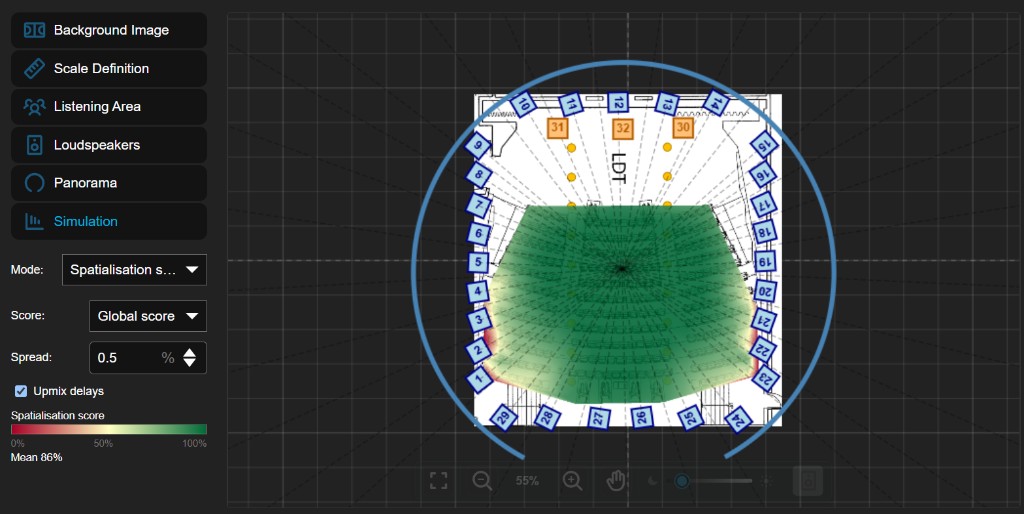
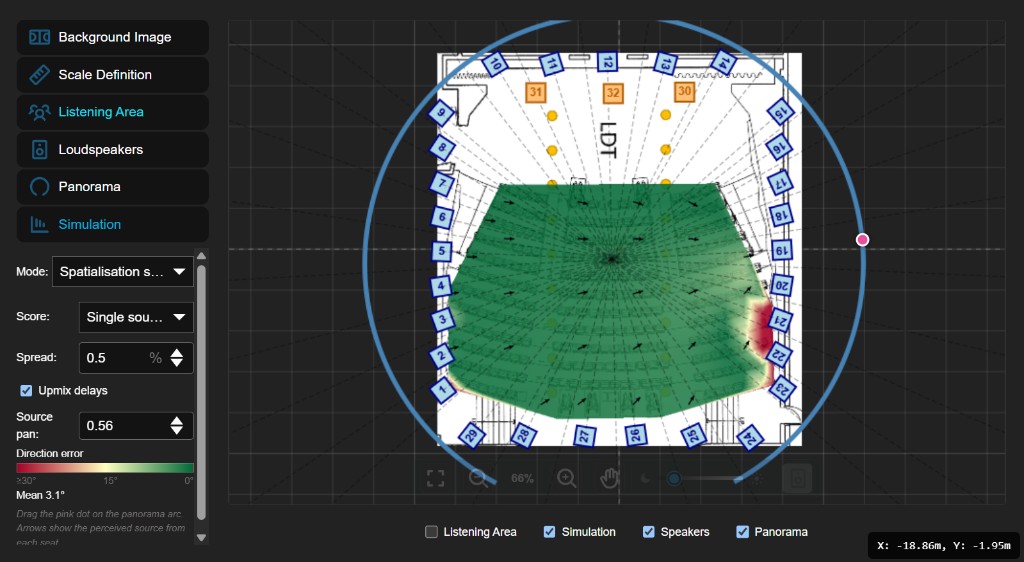
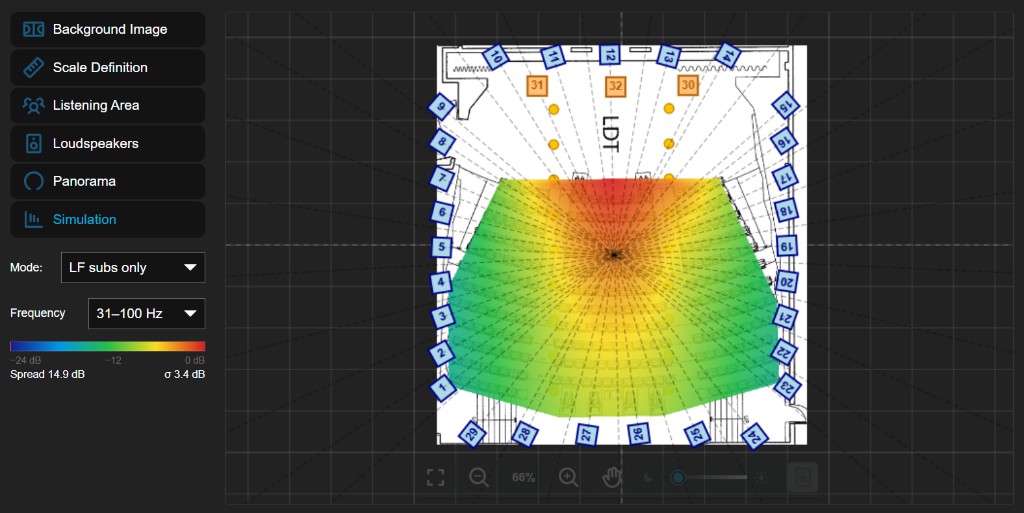
| Control | Result |
|---|---|
| Mode | Spatialisation score, Coverage or Sub. |
| Score | In Spatialisation: Global score (all virtual sources) or Single source panned (direction error of one extracted source). |
| Source pan | Moves the simulated pink source. Drag the pink dot on the panorama arc, or use the number box |
| Spread / Upmix delays | Same parameters as the Upmix page; the map follows them live. |
| Band / Weighting | Coverage: octave band or broadband, pink or A-weighted. 0 dB is the maximum over every pan position. |
| Frequency / Sources | Sub: 31–100 Hz average or a single frequency; Subs only or Subs + full range. |
| Cursor readout | On the map: dB (Coverage / Sub), % (Global score) or degrees (panned direction error). |
Plan Sketch
Plan Sketch is a focused drawing workspace used to prepare or refine a simple venue plan. It is opened from the design workflow and displayed as a dedicated editor.
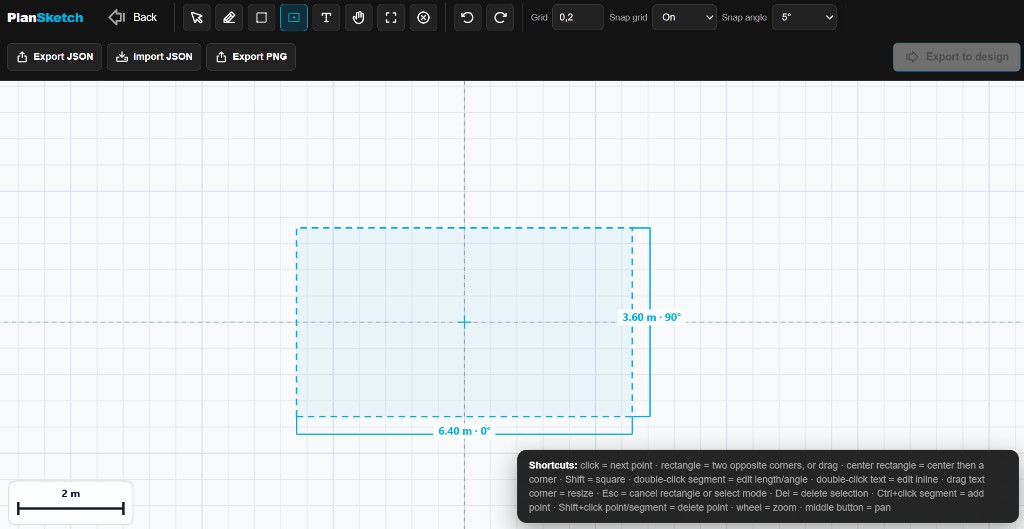
Typical Uses
- Create a simplified room or venue outline.
- Prepare a readable background before placing loudspeakers.
- Export a visual plan for reuse in the design page.
Good Practices
- Keep the plan simple and high contrast.
- Use meaningful proportions before exporting.
- Return to DESIGN after preparing the plan.
Plan Sketch Controls and Interactions
| Control | Result |
|---|---|
 Select tool Select tool |
Selects existing points, segments, shapes, or text boxes. |
| Wall / polyline tool |
Creates an open polyline or polygon outline. Click successively on the canvas |
 Text tool Text tool |
Adds a text box to the plan. Click on the canvas, then type |
| Pan tool |
Moves the view sideways. Click tool, then drag; middle mouse drag also pans |
| Close shape | Closes the active polyline into a polygon. Click when a shape has enough points |
| Point or text box | Moves the selected point or text box. Click and drag |
| Segment | Opens length and angle editing for the segment. Double-click |
| Text box | Edits the text directly on the canvas. Double-click |
| Text resize handle | Resizes the text box and updates text size. |
| Shift + click | Deletes the clicked drawing element where available. |
| Ctrl/Cmd + click | Uses the alternate segment edit action where available. |
| Mouse wheel | Zooms the plan. |
| Grid | Changes the metric grid size. |
| Snap grid | Enables or disables grid snapping. |
| Snap angle | Constrains drawing angles to the selected increment. |
  Undo / Redo Undo / Redo |
Reverts or reapplies the latest drawing operation. Button click or Ctrl/Cmd + Z / Ctrl/Cmd + Y |
| Delete / Backspace | Deletes the selected point, segment, shape, or text box. |
| Escape | Cancels the current drawing or editing operation. |
 Export JSON / Import JSON Export JSON / Import JSON |
Exports or imports the plan data. Click, then copy or paste JSON when prompted |
| Export PNG |
Exports a clean visual image of the plan. |
| Fit |
Centers and zooms the plan content. |
 Clear Clear |
Clears the current plan. |
Inputs & Outputs
Routing is done in four matrices: three input matrices (INPUTS menu) and the output matrix (OUTPUTS menu). They all work the same way; only their place in the signal path changes.
How a matrix works
Columns are sources, rows are destinations. Each cell is a route: a lit cell is an active route.
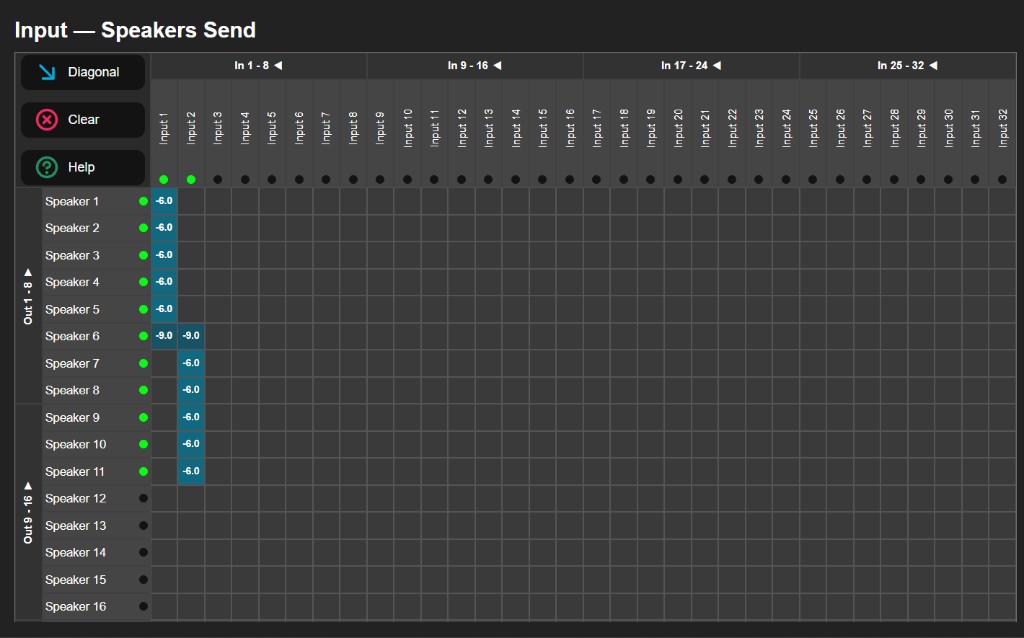
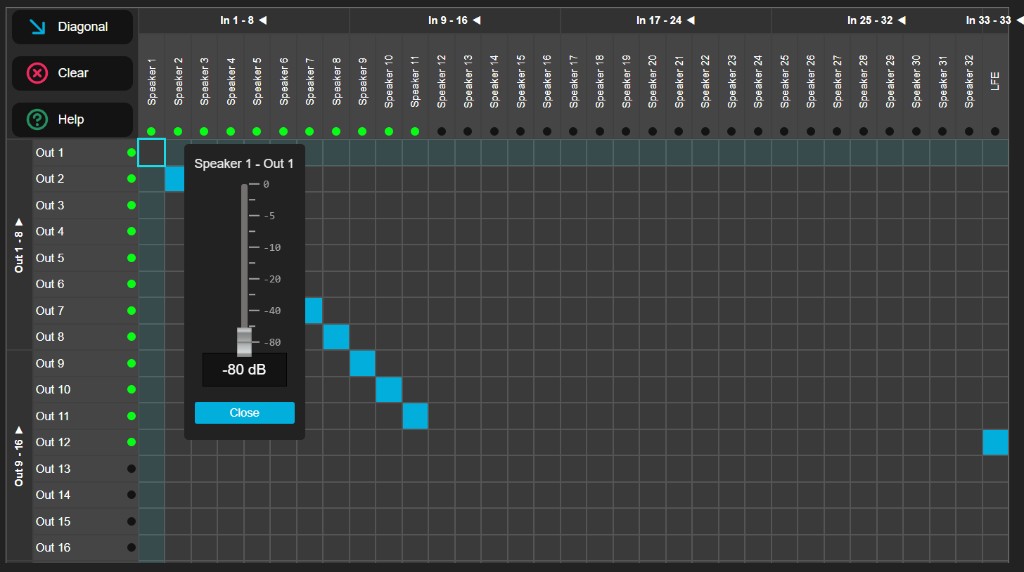
| Control | Result |
|---|---|
| Cell | Turns the route on or off (0 dB gain). |
| Cell | Opens the route's gain fader, for precise level adjustment. Right-click; long press on touch screens |
| Cell | Creates a diagonal (1→1, 2→2…) starting from the clicked cell. Ctrl + click |
| Column header (source) | Opens the {name} – To Outputs mixer: this input's sends to every output of the matrix. |
| Row header (destination) | Opens the {name} – From Inputs mixer: the mix of every input on this output. |
| Channel name | Renames the channel. Double-click; Tab moves to the next channel |
| Diagonal | Routes each source to the destination with the same number (In 1 → Out 1, In 2 → Out 2…). Touch screen: tap Diagonal then a cell to start from that cell; long press Diagonal for the full diagonal |
| Clear |
Removes every route in the matrix. |
| Help | Shows the matrix help. |
| Escape | Closes the gain fader or the mixer, cancels the current edit. |
Input – Upmix Send
Routes Dante inputs to the upmix engine. Inputs routed here are spatialised by the upmix. This is the matrix to use for a stereo mix you want to upmix.
Input – Speakers Send
Sends inputs directly to speakers, bypassing the upmix. The signal joins the speaker path before the speaker delays and gains, so it benefits from each speaker's calibration. Examples: zone fill, a signal sent to one specific speaker.
Input – Direct Out
Sends inputs directly to Dante outputs, with no processing at all (no upmix, no speaker calibration). Examples: returning a source to a console, recording.
Outputs Routing
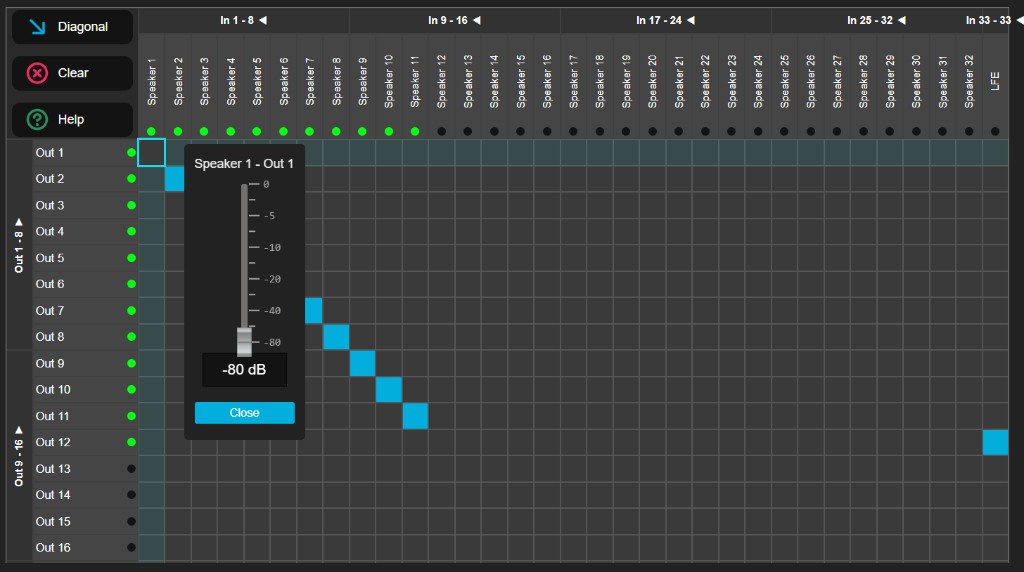
The OUTPUTS page shows the output matrix (Upmix Routing Matrix). It sends each speaker to the processor's Dante outputs. At this stage, each speaker signal combines the upmix, the low frequencies, the Speakers Send and the LFE, after the calibration delays and gains. It works like the other matrices (see How a matrix works).
Columns are grouped full range then sub, in banks of eight cut at the FR/SUB boundary. Unused license slots stay hidden. When the venue has at least one sub, the dedicated LFE input row disappears: the LFE already feeds those sub buses. Without a sub, the LFE row stays so you can route it to outputs yourself.
Recommended Workflow
Upmix
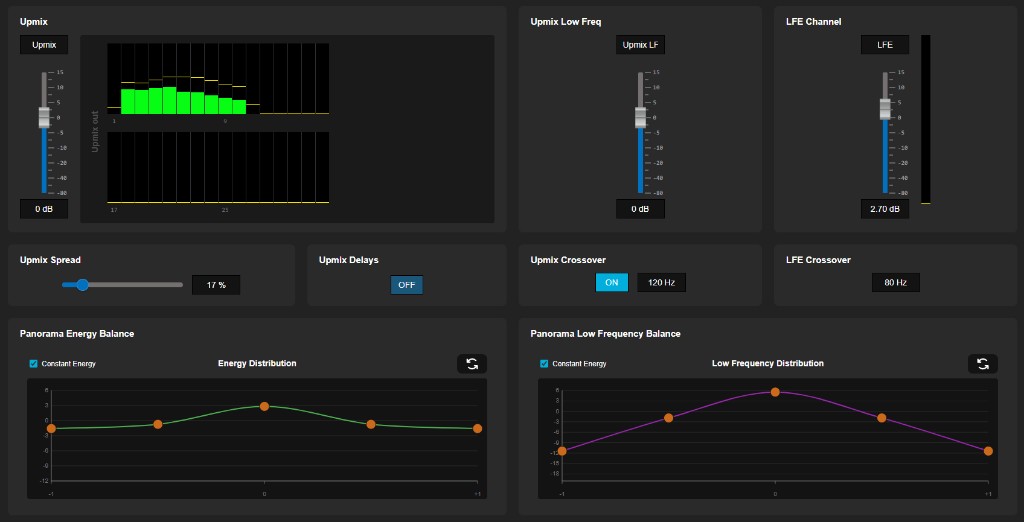
The UPMIX page controls the upmix processing workflow. It includes level controls, low-frequency controls, LFE controls, spread, delays, crossovers, and panorama balance curves.
Main Controls
- Upmix: controls the main upmix level.
- Upmix Low Freq: adjusts the low-frequency contribution of the upmix path.
- LFE Channel: controls the LFE level and meter. With subs in the venue, this level is what those sub buses receive (summed with any Speakers Send to the same bus).
- Upmix Spread: adjusts the spatial spread of the upmix.
- Upmix Delays: enables or disables delay behavior for the upmix. While delays are on, a move changes them gradually, without a click.
- Upmix Crossover: enables and adjusts the upmix crossover frequency.
- LFE Crossover: adjusts the LFE crossover frequency.
- Panorama Energy Balance: adjusts energy distribution across the panorama.
- Panorama Low Frequency Balance: adjusts low-frequency distribution across the panorama.
Where each control acts
| Diagram block | Control |
|---|---|
| Low Freq xover | Upmix Crossover (enable and frequency): splits the Upmix bus from the LF bus. |
| LFE xover | LFE Crossover: cutoff frequency of the LFE bus. |
| Upmix processing | Upmix Spread and Upmix Delays. |
| Upmix gain / LF gain / LFE gain | Upmix, Upmix Low Freq and LFE faders. |
| Upmix Spatial Balance | Energy Distribution editor (Panorama Energy Balance). |
| LF spatial balance | Low Frequency Distribution editor (Panorama Low Frequency Balance). |
Upmix Controls and Interactions
| Control | Result |
|---|---|
| Upmix fader | Changes the main upmix level. |
| LFE fader | Changes the LFE channel level. |
| Upmix Low Freq gain | Adjusts low-frequency contribution in the upmix path. |
| Upmix Spread | Changes the perceived spread of the upmix. |
| Upmix Delays | Enables or disables delay behavior for the upmix. |
| Upmix Crossover toggle | Enables or bypasses the upmix crossover. |
| Upmix Crossover frequency | Sets the upmix crossover frequency. |
| LFE Crossover frequency | Sets the LFE crossover frequency. |
| Energy Distribution editor | Shapes the panorama energy distribution. Drag curve points or handles |
| Low Frequency Distribution editor | Shapes the low-frequency panorama distribution. Drag curve points or handles |
| Upmix and LFE meters | Displays signal level feedback. |
License State
If upmix is not available, the page may display No License for Upmix. Open SETTINGS > LICENSE to check the license state.
Speaker Calibration
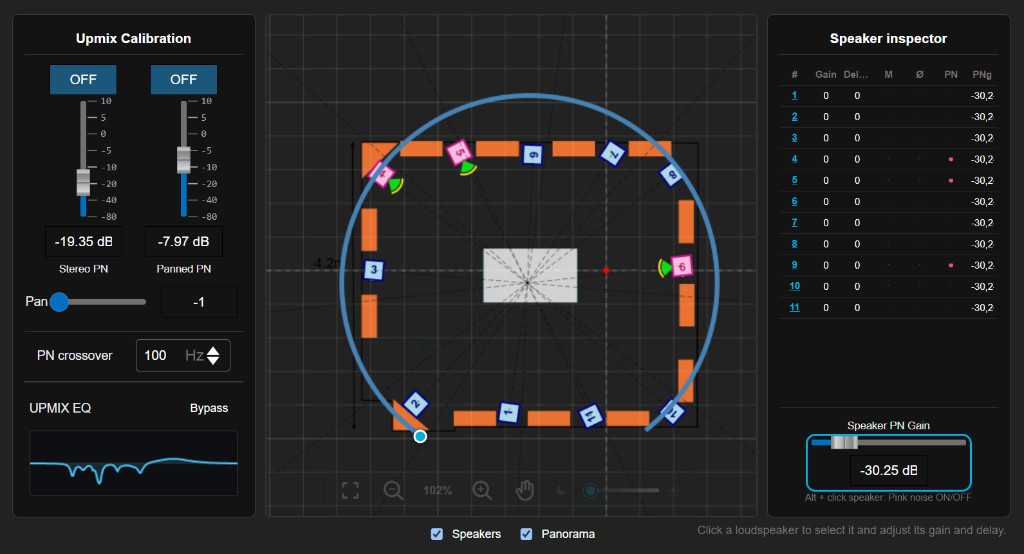
CALIBRATION opens the Speaker Calibration page. It shows your venue on a canvas (loudspeakers and panorama) and lets you check and tune every speaker individually: gain, delay, polarity, mute, and a per-speaker pink-noise test. A change of gain, delay, mute or polarity arrives gradually: the loudspeaker does not click. Calibration is stored with the session and recalled with snapshots.
How It Works
Click a loudspeaker on the canvas to select it — it turns yellow and the Speaker inspector opens on the right. When no speaker is selected, the inspector shows an overview table of every speaker. Speaker colours tell you the state at a glance:
- Yellow — selected or hovered.
- Grey — muted.
- Pink — pink-noise test active on that speaker.
Speaker Inspector (one speaker)
| Control | Result |
|---|---|
| Gain fader | Sets the speaker gain (−40 to +12 dB). |
| Delay slider | Sets the speaker delay (0 to 500 ms). Distance units use the speed of sound (343 m/s). Drag; switch unit tabs |
| MUTE | Mutes or unmutes the speaker (shows grey on the canvas). |
| Polarity () | Inverts the speaker polarity. |
| Pink noise | Starts/stops pink noise on this speaker (shows pink on the canvas). |
| PN Gain | Sets the pink-noise level for this speaker (−80 to +10 dB). |
| Escape | Deselects the speaker and returns to the overview. |
Overview Table (all speakers)
When no speaker is selected, edit every speaker from one table. Columns:
| Column | Meaning |
|---|---|
| # | Speaker number. Click it to open that speaker in the inspector. |
| Gain | Per-speaker gain (dB). |
| Delay | Per-speaker delay, in the selected unit (m / ft / ms). |
| M | Mute on/off. |
| Ø | Polarity invert on/off. |
| PN | Pink noise on/off for that speaker. |
| PNg | Pink-noise gain (dB) for that speaker. |
- Speaker PN Gain fader: sets the pink-noise level for all speakers at once.
- Hovering a table row highlights the matching speaker on the canvas (and vice-versa).
Upmix Calibration Panel (left)
The left panel carries the upmix-wide test and tuning tools, next to the per-speaker work:
- Stereo PN / Panned PN: toggle and level fader for the upmix test signals, with a Pan control for the panned noise.
- PN crossover: the test-signal crossover frequency.
- UPMIX EQ: a response-curve preview with a Bypass button; click the curve to open the full Upmix Calibration EQ page.
Canvas & Display
- Per-speaker signal meters are shown on the canvas so you can see which speaker is receiving signal.
- Use the Speakers and Panorama checkboxes to show or hide those overlays.
- Use the canvas top bar to fit, zoom, pan, and adjust the background brightness.
Upmix Calibration (EQ & Test Signals)
This page groups the upmix-wide test signals and the calibration equalizer. Open it from the UPMIX EQ preview on the Speaker Calibration page, or from CALIBRATION > TEST SIGNALS / EQUALIZER. It helps verify and tune the system before operation.
Test Signals
- Stereo Pink Noise: use for broad level and routing checks.
- Panned Pink Noise: use for checking position and distribution across the system.
Equalizer
The equalizer section provides band controls for calibration. Use it to shape the response according to the installation needs.
Calibration Controls and Interactions
| Control | Result |
|---|---|
| Stereo Pink Noise enable | Starts or stops stereo pink noise. |
| Panned Pink Noise enable | Starts or stops panned pink noise. |
| Noise level | Changes the test signal level. |
| Frequency controls | Adjusts the relevant test signal or calibration frequency. |
| Pan control | Moves panned noise across the output field. |
| Equalizer band | Changes the selected EQ band. |
| Equalizer graph | Adjusts visible EQ parameters directly from the graph. Drag handles where available |
Snapshots
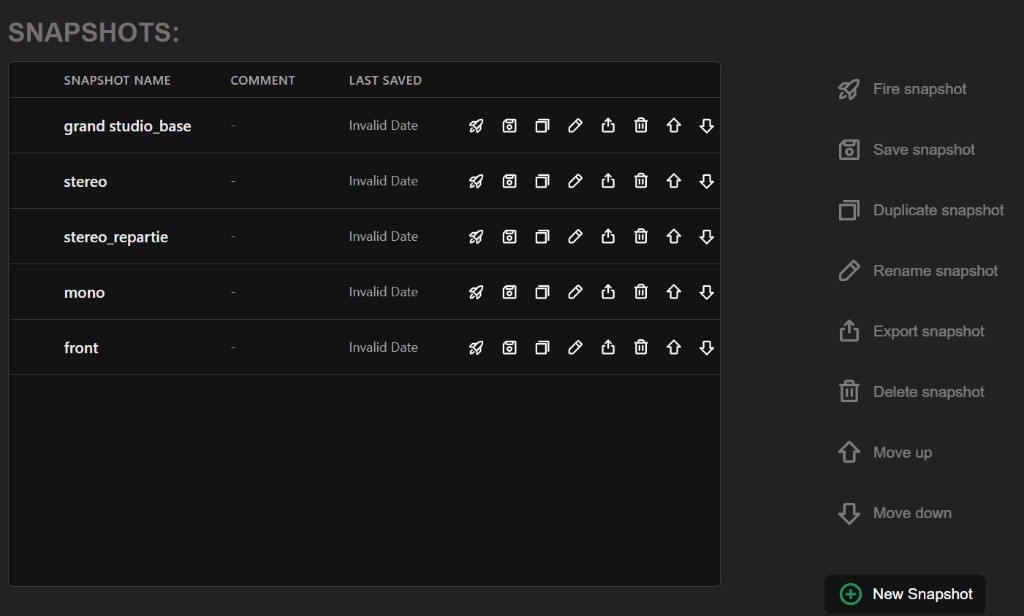
Snapshots store and recall useful states of the current session. Use them to move between known configurations during setup, testing, or operation.
Snapshot Actions
- Fire snapshot: recall the selected snapshot.
- Save snapshot: update the selected snapshot with the current state.
- Duplicate snapshot: create a copy of an existing snapshot.
- Rename snapshot: edit the snapshot name or description.
- Export snapshot: save a snapshot to a file.
- Delete snapshot: remove the selected snapshot.
- Move up / Move down: reorder snapshots in the list.
Snapshot Controls and Interactions
| Control | Result |
|---|---|
| Snapshot row | Selects the snapshot for action buttons. |
 Fire snapshot Fire snapshot |
Recalls the selected snapshot. |
 Save snapshot Save snapshot |
Overwrites the selected snapshot with the current state. |
| Duplicate snapshot |
Creates a copy of the selected snapshot. |
| Rename snapshot |
Changes the selected snapshot name or description. |
| Export snapshot |
Downloads or saves the selected snapshot as a file. |
 Delete snapshot Delete snapshot |
Deletes the selected snapshot. |
  Move up / Move down Move up / Move down |
Changes snapshot order in the list. |
| New Snapshot dialog | Creates a snapshot from the current state. Type name/description; Enter validates where supported; Esc cancels |
| Import Snapshot |
Imports a snapshot into the active session. |
Create a Snapshot
- Set the interface to the state you want to store.
- Open SNAPSHOTS.
- Click New Snapshot.
- Enter a Name and optional Description.
- Click Create.
Import a Snapshot
- Click Import Snapshot.
- Select the snapshot file.
- Wait for the confirmation message.
Meters
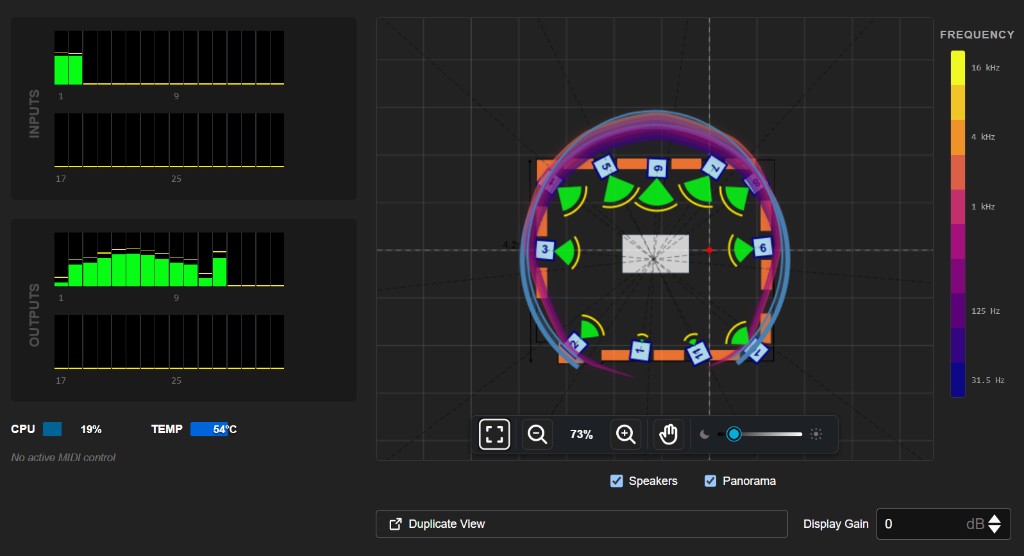
The METERS page gives a monitoring overview of inputs, outputs, CPU, MIDI activity, and the venue display. It is useful during setup and live verification.
Input and Output Meters
The input and output meters show signal levels. Clicking a meter group may navigate to the related input or output page for faster adjustment.
Duplicate View
Use Duplicate View to open a dedicated metering window. This is useful when you want to keep meters visible while editing another page in the main window.
Display Gain and Overlays
Display controls let you adjust the visual gain of the venue display and show or hide overlays such as speakers or panorama information.
Meters Controls and Interactions
| Control | Result |
|---|---|
| Input meters | Monitors input signal and can open the input routing page. |
| Output meters | Monitors output signal and can open the output routing page. |
| CPU meter | Shows processor load information. |
| MIDI monitor row | Shows recent MIDI activity and can help locate mapped controls. |
| Venue canvas | Changes the monitoring view without changing the design itself. Wheel to zoom; pan using the canvas controls |
| Speakers / Panorama overlays | Shows or hides the selected overlay. |
| Display Gain | Changes the visual gain of the displayed energy/frequency overlay. |
 Duplicate View Duplicate View |
Opens a standalone meters window without the main navigation menu. |
Settings
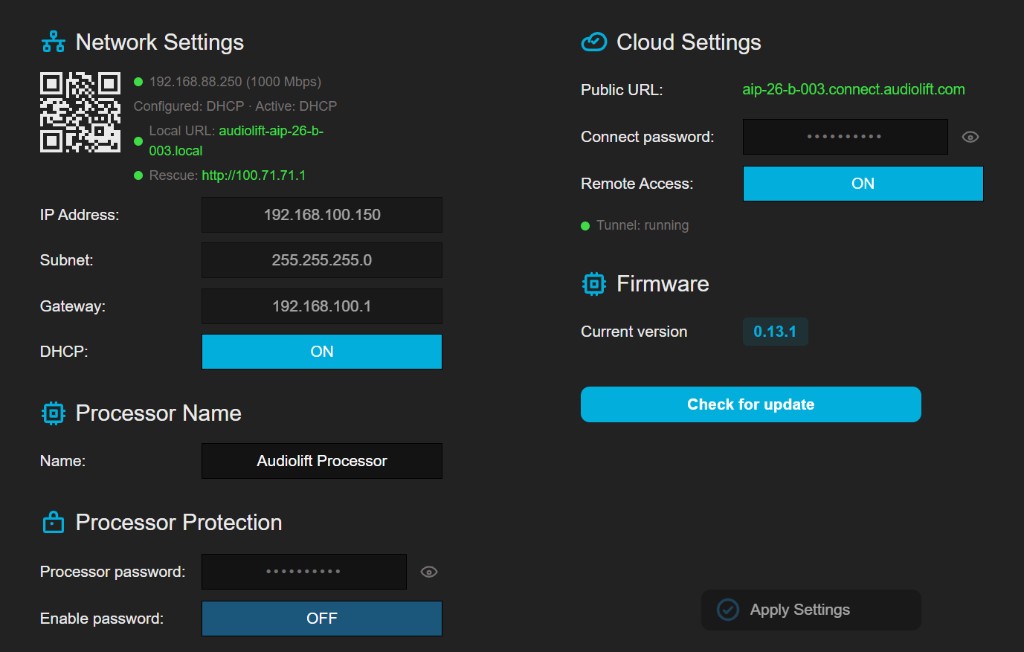
The SETTINGS page contains network, cloud, firmware/update, audio, processor protection, MIDI, and license-related controls.
Network Settings (CONTROL)
- IP Address: shows or edits the processor IP address.
- Subnet: defines the subnet mask.
- Gateway: defines the gateway address.
- DHCP: enables or disables automatic address assignment.
Network Controls and Interactions
| Control | Result |
|---|---|
| Live status line | Shows the current address, link speed when available, and DHCP or static mode. |
| IP Address | Sets the static IP address when DHCP is disabled. |
| Subnet | Sets the subnet mask when DHCP is disabled. |
| Gateway | Sets the gateway when DHCP is disabled. |
| DHCP | Switches between automatic addressing and manual static addressing. |
| Modified section red star | A red star appears next to a modified section title until the changes are saved (Apply Settings). |
| Apply Settings |
Applies pending network changes and may open a reconnect modal. |
| Network reconnect modal | Guides reconnection after address changes. |
Cloud Settings (Remote Access)
Cloud settings control whether this processor can be reached from outside the venue, through its own public address. Turning remote access off leaves the local interface, the audio and local updates untouched.
Cloud Controls and Interactions
| Control | Result |
|---|---|
| Public URL | The fixed address of this processor, built from its factory serial number. It cannot be typed or changed. |
| Connect password | Asked for before anything else when the processor is reached through its public URL. Dots in the field mean a password is already set. It can only be read here, on the local network, never through remote access. This is not the Processor Protection password. Click field and type a new password (8 characters minimum); click the eye to read the current one |
| Remote Access | Opens or closes the public address. OFF stops the tunnel immediately and keeps it closed after a restart. It cannot be turned on without a Connect password. |
| Tunnel | What the connection is actually doing, next to what was asked of it: running, stopped, failed, or not installed on this unit. |
| Apply Settings |
Applies pending cloud changes. |
Field labels followed by a small information icon carry a short explanation, shown when the pointer rests on the icon.
Audio Settings (Sample Rate, Buffer, Latency)
Open SETTINGS > AUDIO. This page sets the sample rate, the buffer size (on supported external interfaces), and shows the resulting input-to-output latency live. Changing the sample rate or buffer restarts the audio engine — follow the modal and wait for the interface to come back.
- Sample rate: choose 48 kHz or 96 kHz. The Dante sample rate is kept in sync with the internal engine.
- Buffer (samples): smaller buffers lower latency; very small values can risk audio glitches on a given interface. The list adapts to the sample rate.
- Total I/O latency: shown in milliseconds and updated as you change the rate/buffer, so you can trade latency against safety margin.
Audio Controls and Interactions
| Control | Result |
|---|---|
| Sample rate | Selects the audio sample rate (internal engine and Dante kept in sync). |
| Buffer | Sets the audio buffer. Smaller = lower latency; may show a caution below the safe floor. Open dropdown, choose a buffer size in samples (supported external interfaces only) |
| Total I/O latency | Displays the current input-to-output latency in ms for the selected rate and buffer. |
| DSP restart modal | Restarts the audio engine when a sample-rate or buffer change requires it. |
| Apply Settings |
Applies pending audio changes. |
Dante Network
On the AUDIO page, the Dante Network sections configure the IP settings of the Dante audio ports, independently of the CONTROL network. There is a section for the Dante Primary port and one for the Dante Secondary port. Each works like the CONTROL network settings.
- DHCP (default ON): automatic addressing. Turn it off to set a static address.
- IP Address / Subnet / Gateway: static values, editable when DHCP is off.
- Live status: shows the current address and whether the port is in DHCP or Static mode. It also warns if the interface is not managed on this device, or if the announced address does not match the active one.
| Control | Result |
|---|---|
| DHCP (Primary / Secondary) | Switches the Dante port between automatic and static addressing. |
| IP Address / Subnet / Gateway | Sets a static address for the Dante port. Type values (enabled when DHCP is off) |
| Dante live status | Shows the current Dante address, mode, and any mismatch/unmanaged warning. |
 Restart Dante / confirmation modal Restart Dante / confirmation modal | Some changes briefly interrupt Dante audio; the modal asks you to confirm before applying. |
| Apply Settings | Applies pending Dante network changes. |
<serial>-<mac>). The channel count (32 or 64) follows the installed license and is reconciled automatically; applying a license that changes it prompts a brief Dante restart.Firmware and Updates
The Firmware section (in SETTINGS, below Processor Protection) updates the processor online, using the built-in update mechanism. Installation and activation are separate: installing does not interrupt audio; only the activation restart does.
- Check for update: queries the update server and lists available versions. If the processor has no internet access, it shows “This processor does not have access to internet”.
- Select & Install: pick a version and install it. The download/install runs in the background and does not interrupt the audio.
- Restart: once installed, click Restart to activate the new version. The processor reboots (audio stops during the reboot).
- Automatic fallback: the version that was running becomes the backup. If the new version fails to boot, the processor automatically falls back to it.
The version block always shows the current version and the fallback version, and “default at next boot” when a restart is pending.
Processor protection controls
| Control | Result |
|---|---|
| Processor password | Asked for when taking control of the session and when applying one, so a running show cannot be altered by accident. Dots in the field mean a password is already set. This has nothing to do with reaching the unit from outside: that is the Connect password, in Cloud Settings. |
  Show / hide password Show / hide password |
Temporarily reveals or masks the password field. |
| Enable password | Enables or disables processor password protection. |
| Apply Settings |
Applies pending protection changes. |
Firmware and Update Controls
| Control | Result |
|---|---|
| Current / Fallback version | Shows the running version and the version the unit falls back to if a new one fails to boot. |
| Check for update | Queries the update server; lists available versions or reports no internet access. |
| Available versions list | Chooses which firmware version to install. |
| Install | Downloads and installs the selected version in the background (audio is not interrupted). |
| Restart | Reboots to activate the installed version. Audio stops during the reboot. |
| Apply Settings button |
Applies all pending setting sections marked as modified. |
MIDI
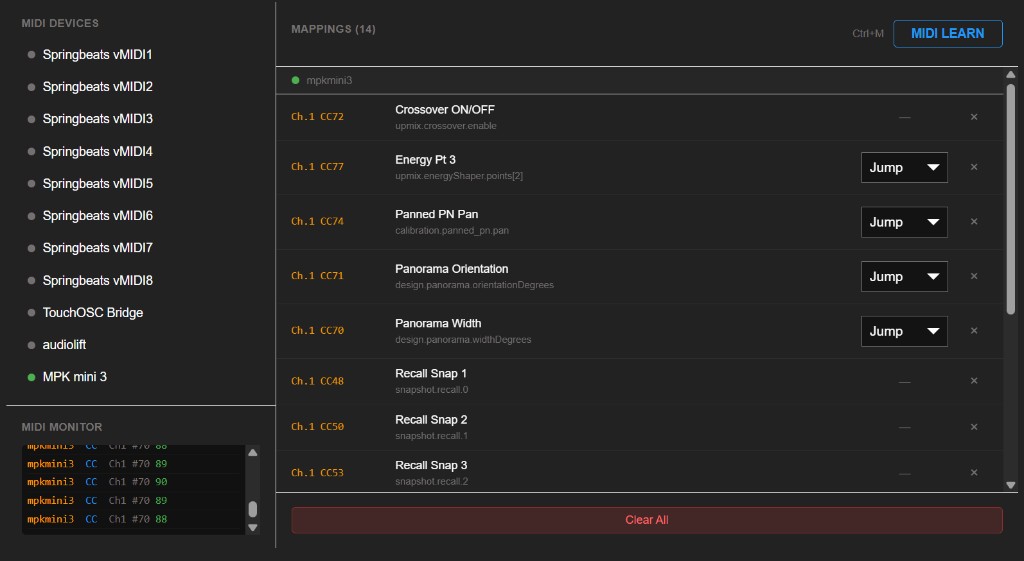
The MIDI page is used to map hardware controls to Audiolift parameters. It includes mapping lists, learn mode, raw message monitoring, and control modes.
Create a mapping from any page
- On any page, press Ctrl + M (or Alt + M): learn mode turns on and mappable controls are flagged.
- Click the control you want to drive (fader, button…).
- Move the desired MIDI control on your surface: the mapping is created.
- Press Ctrl + M again, or Esc, to exit learn mode.
The mappings you create then appear on the MIDI page, where you can delete them or change their control mode.
Control modes
- Jump: the parameter follows the control immediately.
- Pickup: the control must reach the current value before taking over.
- Relative: the control sends relative changes instead of absolute positions.
MIDI Controls and Interactions
| Control | Result |
|---|---|
| MIDI Learn | Enters or exits learn mode (MIDI LEARN / EXIT LEARN button). Ctrl + M on any page |
| Mapped parameter row | Selects or inspects a mapping. |
| Delete mapping | Removes the selected mapping. |
| Control mode | Changes how hardware movement takes control of software parameters (Jump, Pickup, Relative). |
| Raw MIDI log | Shows incoming MIDI messages for troubleshooting. |
| Escape | Cancels MIDI learn mode. |
License
The LICENSE page displays the license state and provides actions for installing a license file. Upmix features may depend on license availability.
License States
- Valid: licensed features are available.
- Grace Period: licensed features are temporarily available.
- Expired: licensed features may be unavailable.
- No License: install a valid license file to unlock licensed features.
Install a License
- Open SETTINGS > LICENSE.
- Select the license file with the .lic extension.
- Wait for the confirmation message.
- Restart or reload the required service if the interface asks you to do so.
License Controls and Interactions
| Control | Result |
|---|---|
| License status | Shows whether licensed features are available. |
| Device ID | Provides the identifier required for license generation or support. |
| License file upload | Installs the selected license file. |
| Post-upload message | Confirms success or explains the next required action. |
External Control (Companion, Stream Deck, OSC)
In addition to MIDI, Audiolift can be controlled from Bitfocus Companion and a Stream Deck+. This lets you recall snapshots and adjust the main upmix parameters from physical buttons and encoders.
What You Can Control
- Snapshots: list snapshots, move between snapshot pages, and recall a snapshot slot.
- Upmix parameters via encoders: spread, panorama width, panorama orientation, and energy center.
- Presence & feedback: when an external controller is connected, Audiolift shows an SD badge, and button/encoder states can be reflected back on the surface.
OSC API
Audiolift Controller receives OSC messages to drive the upmix, the test signals, the panorama and snapshot recall, for example from TouchOSC or show-control software. It drives the same parameters as MIDI. Audiolift Controller must be open and connected to the processor: messages are addressed to the PC running the application, not to the processor.
| Transport | UDP |
|---|---|
| Receive (control) | Port 9880 on the PC's IP address |
| Feedback | Port 9000, sent automatically back to the address that sent the messages |
| Address space | /audiolift/… |
| Values | Float in real units (dB, Hz, %, degrees), clamped to the listed range |
Control addresses
| Address | Range | Parameter |
|---|---|---|
/audiolift/upmix/upmixGain | −60 to +12 dB | Upmix gain |
/audiolift/upmix/upmixLfGain | −80 to +15 dB | Upmix Low Freq gain |
/audiolift/upmix/lfeGain | −60 to +12 dB | LFE gain |
/audiolift/upmix/spread | 0 to 100 % | Upmix Spread |
/audiolift/upmix/crossover/freq | 20 to 300 Hz | Upmix Crossover frequency |
/audiolift/upmix/lfeCrossover/freq | 20 to 300 Hz | LFE Crossover frequency |
/audiolift/upmix/energyShaper/points/{0-4} | −12 to +6 dB | Energy Distribution editor points |
/audiolift/upmix/lfShaper/points/{0-4} | −20 to +6 dB | Low Frequency Distribution editor points |
/audiolift/upmix/delayOnOff | 0 / 1 | Upmix Delays |
/audiolift/upmix/crossover/enable | 0 / 1 | Upmix Crossover enable |
/audiolift/calibration/stereo_pn/toggle | 0 / 1 | Stereo pink noise |
/audiolift/calibration/stereo_pn/level | −80 to +10 dB | Stereo pink-noise level |
/audiolift/calibration/stereo_pn/freq | 20 to 20 000 Hz | Stereo pink-noise frequency |
/audiolift/calibration/panned_pn/toggle | 0 / 1 | Panned pink noise |
/audiolift/calibration/panned_pn/level | −80 to +10 dB | Panned pink-noise level |
/audiolift/calibration/panned_pn/pan | −1 to +1 | Panned pink-noise position |
/audiolift/design/panorama/widthDegrees | 1 to 360 ° | Panorama Width |
/audiolift/design/panorama/orientationDegrees | −180 to +180 ° | Panorama Orientation |
/audiolift/snapshot/recall/{0-19} | no argument | Recall snapshot 0 to 19 |
Feedback (port 9000)
Audiolift Controller sends back the value of each parameter above when it changes, as well as:
/audiolift/meters/inputs, /audiolift/meters/outputs,
/audiolift/meters/upmix, /audiolift/meters/lfe,
/audiolift/snapshot/active, /audiolift/status/connected,
/audiolift/status/processor_ip and /audiolift/status/processor_name.
About
The ABOUT page displays product information, version information, links, and reporting actions. Use it when support asks for product information or when you need to report an issue.
About Controls and Interactions
| Control | Result |
|---|---|
| Version information | Displays the installed software version and product details. |
| External links | Opens the related support, documentation, or product page. |
| Report issue | Opens the report dialog for bug or connectivity feedback. |
| Report dialog | Lets the user describe and send an issue report. |
Connection Loss & Offline Recovery
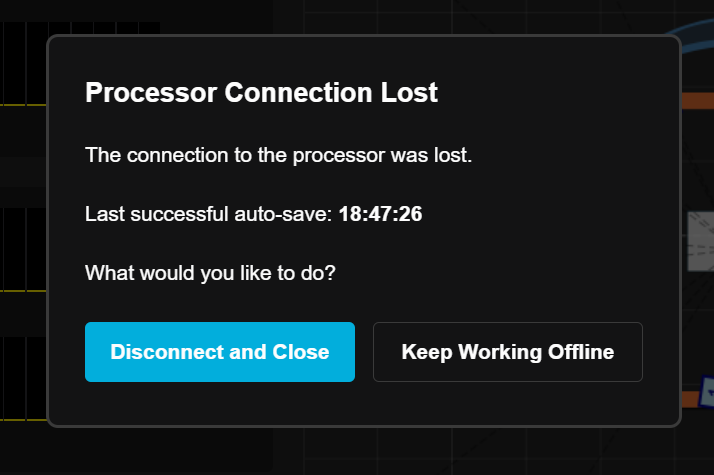
If the processor connection is lost unexpectedly, Audiolift can display a Processor Connection Lost dialog. This dialog helps you decide how to continue.
Available Choices
- Disconnect and Close: leave the current processor workflow and return to processor selection.
- Keep Working Offline: continue editing locally without an active processor connection.
- Save Offline Backup: create a local backup with a session name and description.
Troubleshooting
| Symptom | What to check |
|---|---|
| Pages redirect to PROCESSORS. | Load a session or connect to a processor. Some pages require an active session or connection. |
| Upmix shows No License for Upmix. | Open SETTINGS > LICENSE and verify that a valid license is installed. |
| MIDI controls do not appear. | Use an environment that supports MIDI access, preferably the desktop application. |
| No output signal is visible. | Check input routes, output routes, levels, mute states, and output meters. |
| A network change made the processor unreachable. | Wait for the reconnect countdown, then connect using the new expected address. |
| A snapshot cannot be imported. | Check file format, file size, and whether a snapshot with the same name already exists. |
| Check for update says there is no internet. | The processor has no internet access. Connect CONTROL to a network with internet, then Check again. You can still run the unit on the current version. |
| Dante Network shows “not managed”. | The Dante port is not currently managed on this unit. Check the Dante cabling and that the correct port is connected; see Dante Network. |
| Dante audio dropped briefly after a change. | Expected: changing the Dante network, device name, or channel count briefly restarts the Dante platform. Apply such changes outside a live moment. |
| A speaker is silent during Speaker Calibration. | Check it is not muted (grey), that its Pink noise is ON with enough PN Gain, and that output routing feeds that speaker. |